05. Play Mode Live Debugger
Overview
The Play Mode Live Debugger is a real-time inspection, diagnostic, and cheat console that provides an X-ray view into FuzzySave’s runtime memory state while your game is actively playing.
Open the debugger via the Unity menu:
Tools > FuzzySave > Play Mode Live Debugger
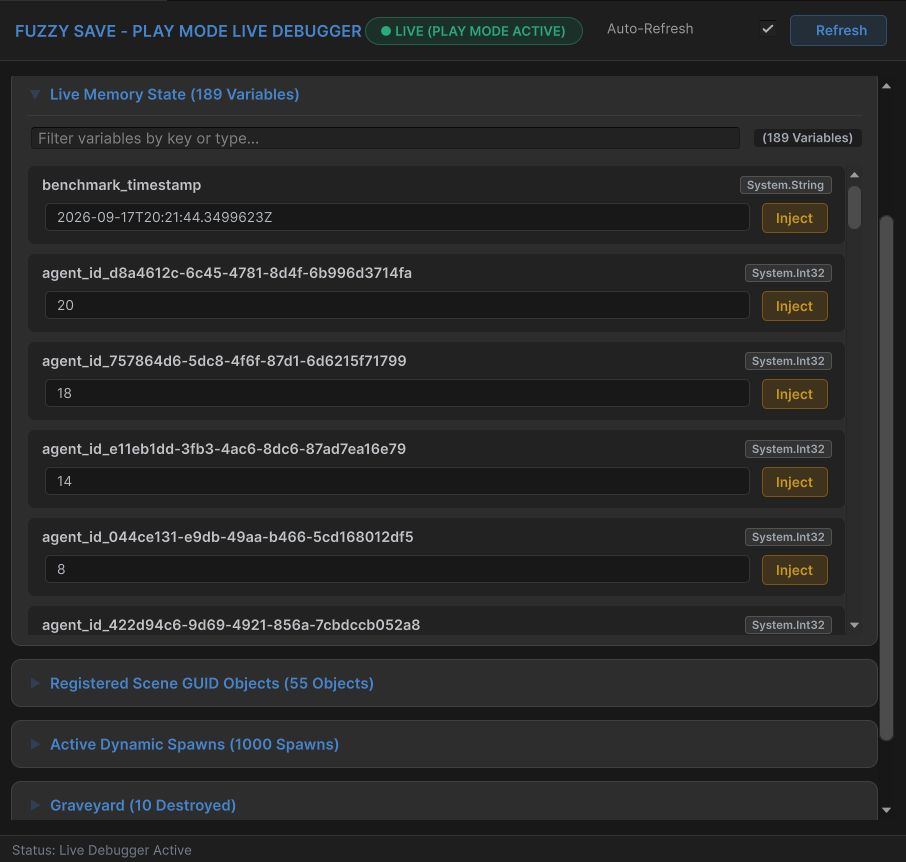
Key Capabilities
1. Real-Time Status & Slot Controls
- Live Status Badge: Displays green
● LIVE (ONLINE)while in Play Mode. In Edit Mode, a clear warning card explains that memory inspection requires an active game session. - Instant Slot Operations: Select any slot from the dropdown or create a new slot name, then trigger Save, Load, or Delete with a single click.
2. RAM Snapshots & Instant Time-Travel
RAM Snapshots allow developers and QA testers to capture the exact game state into memory without touching the hard drive:
Take Snapshot: Saves the entire state into a RAM dictionary keyed by a custom ID (e.g.,"before_boss").Restore Snapshot: Restores all player variables, scene GUID positions, and spawned entities within < 1 millisecond.- Ideal For: Fast testing loops, trial-and-error combat balancing, and debugging transient bugs.
// Programmatic equivalent of the snapshot buttons:FuzzySaveManager.TakeSnapshot("boss_room");
// Restore immediately on defeat:FuzzySaveManager.RestoreSnapshot("boss_room");
3. Live Variable Injection (God Mode & Cheating)
The In-Memory Variables panel lists every variable registered in s_CurrentContainer:
- Real-Time Polling: Values update automatically every 500ms as gameplay progresses.
- Live Mutate & Inject:
- Type a new value into any variable field (e.g., change
player_hpfrom100to9999). - Click Inject (or press Enter).
- FuzzySave immediately writes the value back to the live GameObject in the scene.
- Type a new value into any variable field (e.g., change
- Search Filtering: Quick search bar to locate specific stats in complex games with hundreds of variables.
4. Scene Object & Spawn Tracking with Ping
- Tracked Scene GUIDs: Lists every static scene object monitored by a
SaveGuidcomponent along with its current transform position. - Active Dynamic Spawns: Lists every runtime-instantiated entity tracked by
DynamicSpawnTracker. - [Ping] Button: Clicking Ping instantly highlights and selects the GameObject in Unity’s Hierarchy and focuses it in the Scene View!
5. Live Graveyard (Destruction) Management
When objects registered with SaveGuid are destroyed in the scene (such as opened chests, collected coins, or defeated enemies), they enter the Graveyard Registry:
- The Graveyard panel displays all currently dead GUIDs.
- [Revive] Button: Removes the object from the graveyard, allowing it to respawn when the scene or slot is reloaded.
- [Clear Graveyard]: Resets the destruction history across the current session.
Next Chapter
Proceed to 06. Tracking Engine, Dynamic Spawns & Graveyard to explore the mechanics behind SaveGuid, runtime entity instantiation, and destruction tracking.