Toolbar & Core Navigation
The top toolbar of FuzzyIDE gives you instant access to the core features you need during development. Here is a breakdown of what each icon does:
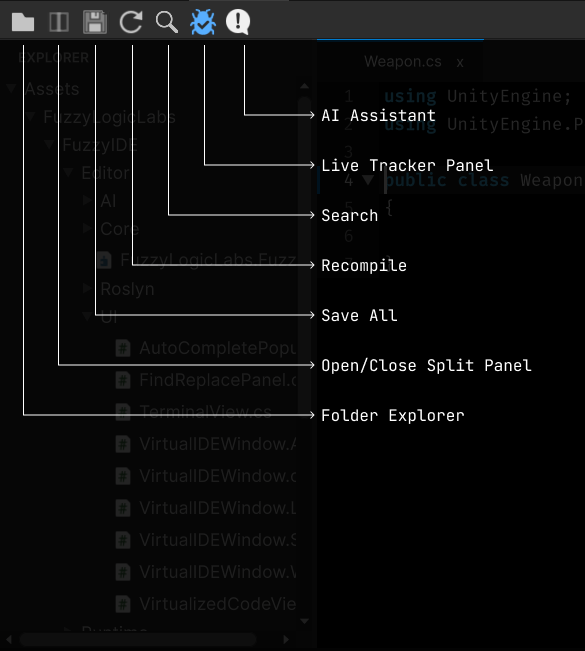
- Project (Toggle Explorer): Opens or closes the project file tree on the left side. Useful for quickly switching between scripts.
- Toggle Split View: Splits the editor screen into two side-by-side panes. Ideal for comparing code or reading a reference file while writing another.
- Save Active: Saves all unsaved documents. You can also use
Ctrl+S(Windows) orCmd+S(Mac). - Refresh (Recompile): Instantly triggers a domain reload in Unity to compile your latest script changes without leaving the IDE window.
- Search Icon: Opens the global search window to find text or references across your entire project.
- Watch Panel Toggle: Displays the Live Watch Tracker pane, where you can monitor variable values in real-time during Play Mode.
- AI Assistant Toggle: Opens the integrated AI sidebar, ready to assist you with generating, refactoring, or explaining code.