AI Assistant & Co-Pilot
FuzzyIDE features an integrated AI Assistant that sits alongside your code to act as your personal co-pilot. It is fully aware of your project environment and can perform complex tasks autonomously.
Accessing the Assistant
Click the AI Assistant Toggle (the Info icon) on the main toolbar to open the assistant panel.
Key Features
The AI Assistant is designed to be deeply integrated into your Unity workflow. Its current capabilities include:
- Workspace Awareness: The assistant can automatically see the files you currently have open in the IDE. You don’t need to copy-paste code; just ask a question about your active script.
- File Creation: If you request a new script, manager, or utility class, the AI can generate and create the
.csfile directly in your project. - Code Modification: The AI can directly edit, refactor, and inject new code into your existing scripts.
- Error Fixing: Paste Unity compiler errors into the chat, and the AI will analyze your workspace to find and fix the bug.
Assistant Window Options
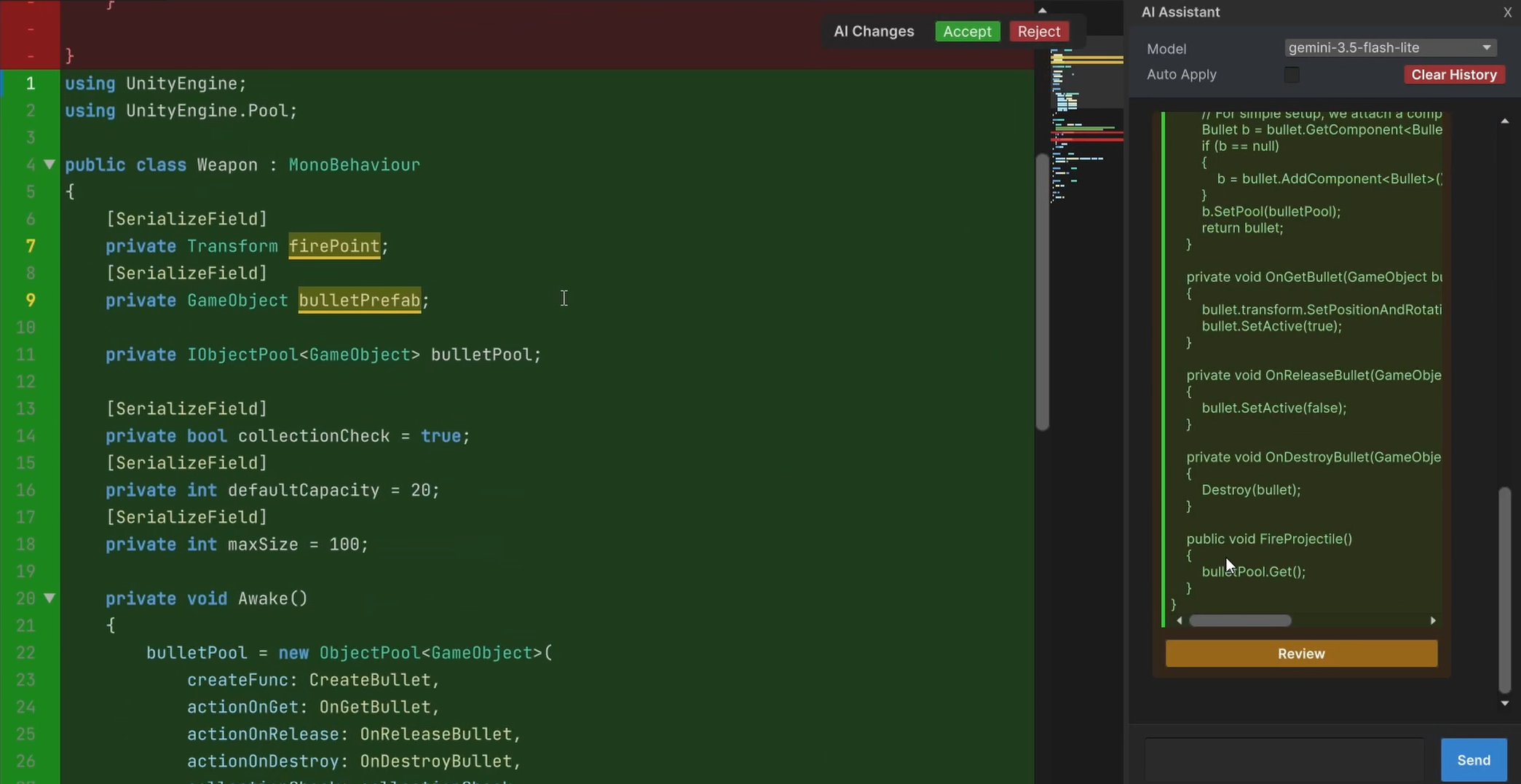
At the top and within the AI Assistant panel, you will find several controls to manage your AI sessions:
- Model Selector: A dropdown menu that allows you to switch between different AI models on the fly (e.g.,
gpt-4o,gemini-1.5-pro). The available models depend on what you have configured in the IDE Settings. - Auto-Apply Toggle: When enabled, any code changes the AI suggests will be instantly applied to your scripts. Use this for maximum speed when you trust the AI’s output.
- Clear History: Wipes the current chat history. This is highly recommended when starting a new task, as it clears the AI’s context memory and prevents confusion from previous conversations.
- Review Button: If
Auto-Applyis turned off, the AI will present code modifications as a proposal. A Review button will appear in the chat. Clicking it opens a diff view where you can inspect the changes side-by-side before clicking Accept or Reject.