07. Master Dashboard: Insights & Analytics
← Previous: Master Dashboard: Health & Auto-Fix | Main Overview | Next: Master Dashboard: Settings & Pro →
What is Insights & Analytics Studio?
In production game projects, typefaces (TMP_FontAsset) and their corresponding signed distance field textures (SDF Texture Atlases) represent some of the heaviest UI assets in terms of RAM/VRAM consumption and build footprint. Inadvertently including two unused 2048x2048 font atlases can cause mobile titles to exceed memory budgets.
Insights & Analytics Studio audits your typography footprint across the entire repository, breaking down memory weights and mapping typography coverage on a per-prefab basis.
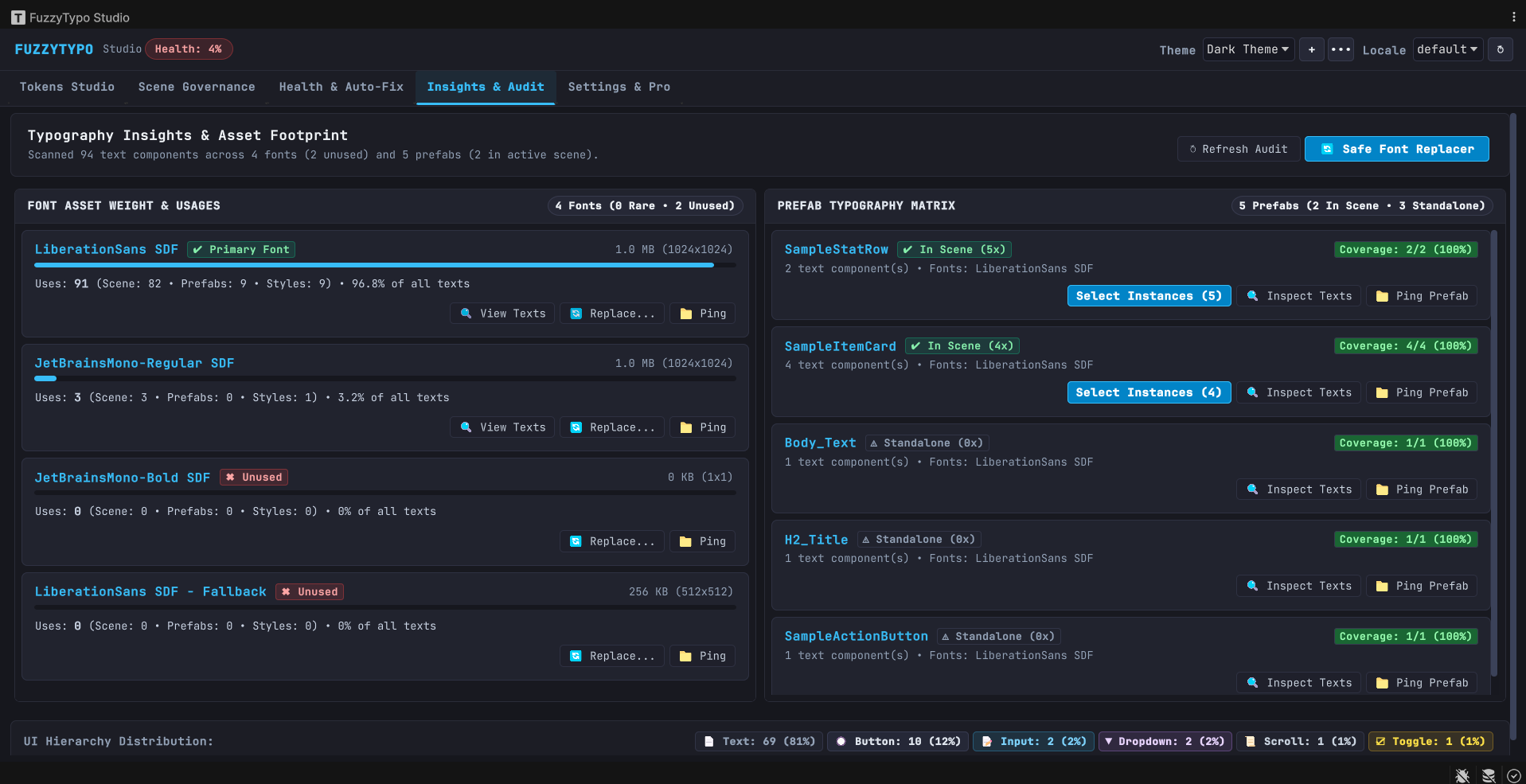
1. Font Asset Memory Weight & Footprint Analysis (FuzzyFontAnalytics)
The left column indexes all TMP_FontAsset instances detected in your project and summarizes their footprint:
pie title Font Memory Allocation & Utilization
    "LiberationSans SDF (1024x1024) [In Use]" : 65
    "JetBrainsMono SDF (512x512) [In Use]" : 20
    "CustomTitle SDF (2048x2048) [Unused / 0 Refs]" : 15
Tracked Metrics:
- Atlas Dimensions & VRAM Footprint: e.g.,
1024x1024 (1.0 MB)or2048x2048 (4.0 MB). - Scene and Prefab Reference Count: Tracks how many scene text components, prefab assets, and theme styles reference each font asset.
- Unused Font Detection (
UnusedBadge): Highlights fonts present on disk that have zero references across scenes, prefabs, and themes. Removing these unused assets instantly reclaims megabytes from your package build size. - Rarely Used Warnings: Pinpoints single-instance special fonts that may be candidates for consolidation.
2. Prefab Typography Coverage Matrix (FuzzyPrefabAnalytics)
The right column itemizes every UI prefab in the project and displays its design system adoption level (Coverage %):
Matrix Insights:
- Coverage Badge: e.g.,
8/10 (80%), signifying that 8 out of 10 text instances inside the prefab are connected to central tokens. - Scene Instance Count: Indicates how many active instances of this prefab exist in the open scene (
In Scene: 5). - Referenced Fonts: Lists the specific font assets required by the prefab.
- One-Click Prefab Access: Clicking the prefab name opens it in the Unity Project window or launches Prefab Isolation Mode.
3. Safe Font Replacer
Deleting or renaming a font asset in Unity conventionally leaves hundreds of text components with missing reference warnings (None (TMP_FontAsset)).
The Safe Font Replacer utility accessible from the toolbar eliminates this danger:

flowchart LR
    SourceFont["Source Font (e.g., Old Font SDF)"] --> Replacer["Safe Font Replacer"]
    TargetFont["Target Font (e.g., New Font SDF)"] --> Replacer
    Replacer --> ScanReplace["Safely Replace Across All Scenes, Prefabs & Themes"]
    ScanReplace --> SafeDelete["Old Font Can Now Be Safely Deleted!"]
How to Use:
- Source Font: Select the obsolete font asset you wish to replace.
- Target Font: Choose the replacement font asset.
- Execute Replace: Click the button to scan all scenes, prefabs, and
FuzzyThemeassets, remapping every reference safely. - You can now delete the old font asset from your project without breaking any UI assets.
4. UI Context Role Distribution
At the bottom of the window, a horizontal distribution meter illustrates how typography is apportioned across different UI archetypes:
- Compares relative proportions between Buttons, Input Fields, Headings, and General Text, providing a high-level view of interface balance.
← Previous: Master Dashboard: Health & Auto-Fix | Main Overview | Next: Master Dashboard: Settings & Pro →