06. Master Dashboard: Health & Auto-Fix Studio
← Previous: Master Dashboard: Scene Governance | Main Overview | Next: Master Dashboard: Insights & Analytics →
What is Health & Auto-Fix Studio?
As game projects expand, text elements added by different team members often diverge from the established design system:
- Buttons use unapproved typefaces,
- Strings containing special characters, Turkish diacritics, or CJK glyphs render as missing squares (
□or?), - Dozens of text components remain unlinked from the central typography pipeline.
Health & Auto-Fix Studio addresses this by continuously auditing your scenes (FuzzyTypographyLinter), computing an objective Design System Health Score (0% – 100%), and resolving detected discrepancies with a 1-Click Auto-Fix All automated engine.
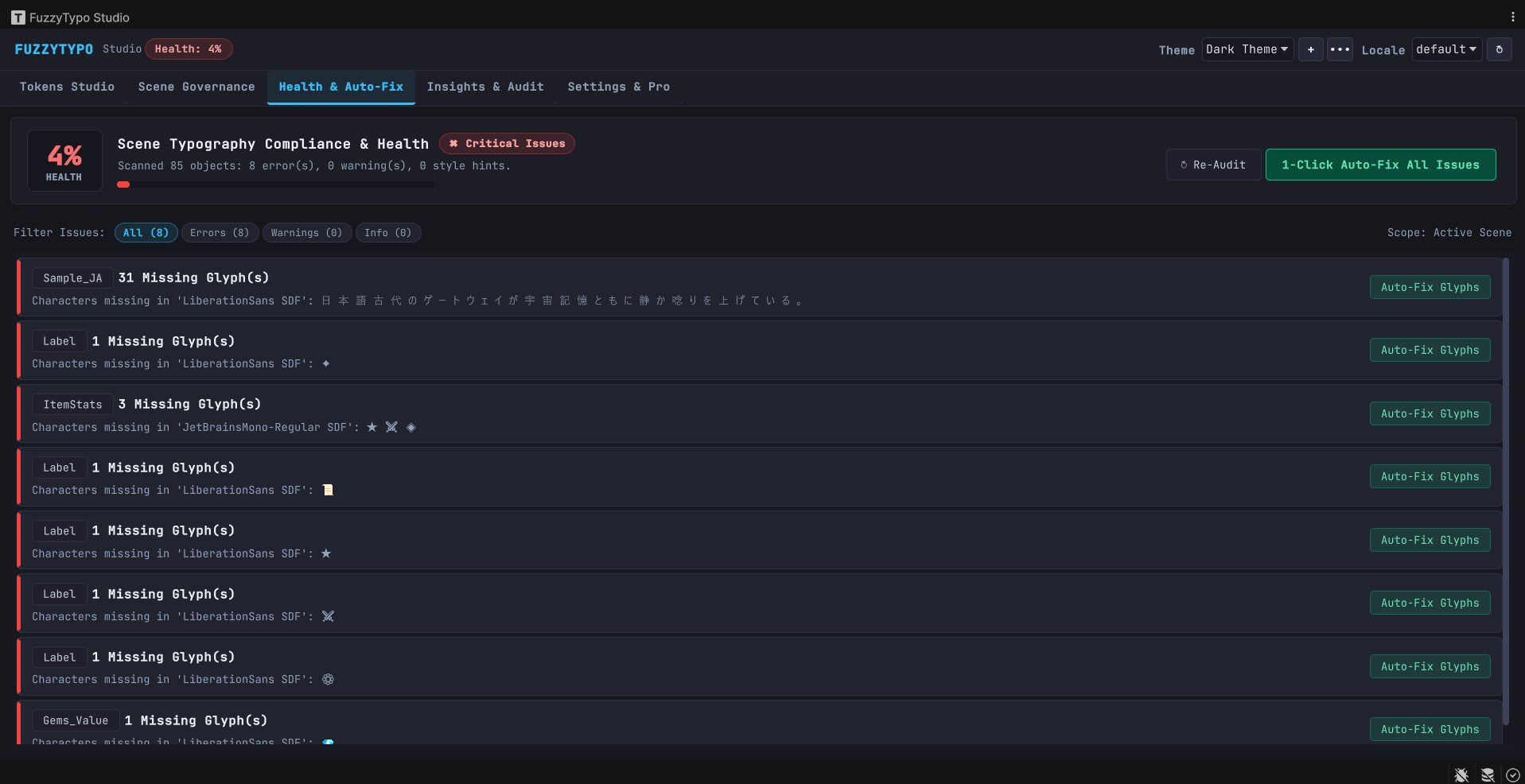
Design System Health Score Gauge
Located at the top of the tab, the Hero Health Card displays your typography compliance level via a visual progress meter:
flowchart LR
    Scan["Scene Texts Scanned"] --> Audit["Linter Rules Evaluated"]
    Audit --> Calc["Weighted Health Score Calculated (0–100%)"]
    Calc --> Display["Visual Gauge & Issue Cards Rendered"]
    Display --> OneClick["⚡ 1-Click Auto-Fix All"]
    OneClick --> Hundred["🎉 100% Compliant"]
- 100% (Green — Compliant): All scene text elements are linked to the design system, fonts are assigned correctly, and no missing glyphs exist.
- 70% – 99% (Yellow — Warnings): Some text elements are unlinked or contain isolated local overrides.
- 0% – 69% (Red — Errors): Critical missing font assets or unmapped glyphs that will appear broken in build releases.
Evaluated Issue Types & Severity Levels
FuzzyTypographyLinter validates text instances across 5 core criteria:
Issue Type (IssueType) | Severity | Score Impact | Description |
|---|---|---|---|
| MissingFontAsset | Error | High | The text component has no font asset assigned (None). Renders pink or broken in-game. |
| MissingGlyphs | Error | High | Characters in the text string (e.g., diacritics ç, ğ, ş, CJK ideographs, symbols) are absent from font atlases and fallbacks. Renders as □. |
| UnlinkedText | Warning | Medium | The text has no FuzzyTypoLinker attached and does not respond to central theme updates. |
| OffScaleFontSize | Warning | Medium | The font size (e.g., 17.3px) matches none of the modular type scale tokens defined in the active theme. |
| LocalOverrides | Info | Low | The text is linked to a central style, but specific properties (such as color) have been overridden locally. |
1-Click Auto-Fix All Engine
Resolving hundreds of minor discrepancies by hand is tedious. The prominent green “1-Click Auto-Fix All Issues” button handles this automatically:
What happens when clicking 1-Click Auto-Fix?
- Missing Fonts Are Restored: Unassigned text components receive the active theme’s primary font asset.
- Unlinked Texts Are Bound: Components are analyzed by font size and context role, then automatically linked to the best-matching
FuzzyTextStyle. - Missing Glyphs Are Resolved (
FuzzyGlyphFixer): Operating system fonts (Yu Gothic,Segoe UI Symbol, etc.) are queried to synthesize fallback font assets, which are immediately chained into the primary font’s fallback list. - Invalid Overrides Are Cleaned: Redundant or invalid overrides are normalized.
- Result: Your scene achieves a 100% Health Score within seconds!
[!NOTE] All automated modifications are registered into Unity’s
Undohistory. If desired, any operation can be immediately undone usingCtrl+Z(macOS:Cmd+Z).
Individual Issue Card UI
Every detected discrepancy is presented as an actionable card:
- Title & Hierarchy Path: Precise scene route (
Canvas > Panel > TitleText). - Description: Technical explanation and specific missing Unicode values (e.g.,
U+011F (ğ)). - Ping Button: Highlights the GameObject in the scene view and hierarchy (
EditorGUIUtility.PingObject). - Suggested Action Button: Resolves the issue for that specific object (e.g., “Link to ‘Heading 1’” or “Add Fallback Font”).
← Previous: Master Dashboard: Scene Governance | Main Overview | Next: Master Dashboard: Insights & Analytics →